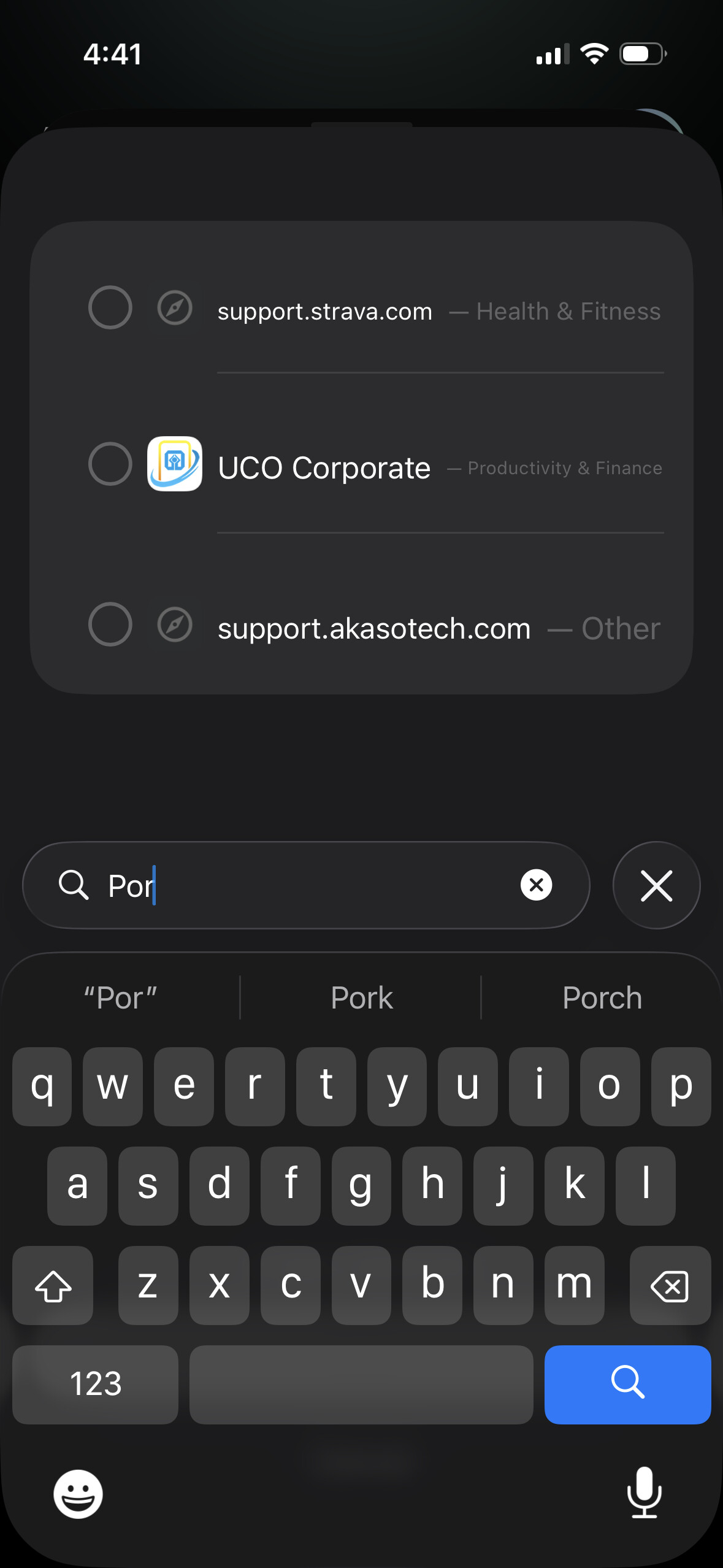
After the recent UI update, the adult website blocking functionality seems to have changed or possibly regressed.
Previously, I was able to block adult websites during a specific time window, for example from 8 a.m. to 10 p.m., using a hard limit. That worked well because the block could not be easily bypassed during the scheduled window.
In the new UI, I no longer see that option. The only workaround I can find is adding adult websites to the “Never Allowed” app or website list. However, that seems easy to bypass by long-pressing and unblocking, which defeats the purpose of the restriction.
Is this expected behavior, or am I missing a setting in the new UI?
It would be very helpful to have a stronger blocking option where adult websites cannot be bypassed manually, and can only be unblocked through a predefined schedule or by changing the schedule settings intentionally.
The good news: you don’t need to go through Adult Website Protection to block a specific site during certain hours. You can add a website directly to any Schedule rule, Time Limit, or Open Limit; the same way you’d add an app.
To do it: open a Schedule rule (or create a new one), tap “Add App or Website,” and type the domain you want blocked. With Hard Mode on, Opal will block that site for the full window with no way to tap through, it’s the equivalent to how V3 handled it.
Adult Website Protection, found in Settings → Advanced, is a different thing: it blocks the entire adult content category at the system level, all the time, no schedule. Useful if you want a permanent blanket block, but it’s not time-windowed, and as you noticed, deleting and reinstalling the app resets it, which is a real limitation we’re aware of.
For your situation: blocking a specific site during work hours with no bypass , a Schedule rule with that site added and Hard Mode enabled is the right setup.
Thanks for replying, and thanks for sharing your workaround.
I’m still not sure this solves the issue with the new approach. From what I understand, I now need to manually enter each adult website or app that I want to block during a scheduled period. In the previous version, I could simply select the “Adult Content” category, and any content classified as adult would be blocked automatically during that schedule.
Instead of requiring users to add specific adult website links one by one, is there a way to block an entire content category, such as Adult Content, for a specific schedule?
Blocking the entire adult content category on a time-based schedule, isn’t currently possible in v4. You can only block individual sites within a schedule rule, not a whole category.
That said, there is a newer feature that helps with the bypass concern you raised: PIN Code Access (Settings → Advanced). When enabled, it requires a 4-digit PIN before anyone can edit your Never Allowed list, disable Adult Website Protection, or edit any rule. This makes the “long-press to unblock” workaround you’re worried about significantly harder, since changing anything protective requires the PIN first.
The closest setup right now for your use case would be:
Turn on Adult Website Protection in Settings → Advanced (always-on blanket block)
Enable PIN Code Access so it can’t be disabled without the PIN and have someone you trust create the pin.
That covers the “can’t easily bypass” requirement, even though it’s not time-windowed. The scheduled adult category block is a genuine gap and I’ll make sure this is logged as specific feature feedback for the team.
Thank you for sharing the flow and for responding with the PIN-code-based access approach. I appreciate the team looking into this and explaining the intended workflow.
That said, this feels more suited to parental monitoring than adult self-control around website blocking. The current setup does not really replace the previous adult block experience. It could work better if there were two separate PINs: one for the overall rule system and another specifically for adult-category website blocking.
Right now, if I ask a trusted person to set the PIN for adult category blocking, that may solve one problem, but it also prevents me from adjusting other rule-based controls for apps during the day or week. That creates a real usability issue for adults who want accountability around certain categories while still needing flexibility for other app rules.
I appreciate the new UI direction, but the experience feels significantly worse than the earlier app in this area. A redesign should not come at the cost of losing feature parity, especially for a core use case that was already working well.
I’m being direct because I genuinely love the app and the mission behind it. This feels like a basic product principle: improve the interface, but do not regress important functionality that users rely on.
Also, I am trying to add the adult website in a schedule block but I don’t see them showing up. I remember there was a way to add specific website to show up in the App picker using the instruction here https://help.opalapp.com/can-i-add-my-own-websites-domains but seems like this link is down?