We have some good news! We’ve tested and recreated an advanced-level Shortcut & Automation to prevent you from toggling off access to Screen Time. Before you implement it, please ensure you’ve set up our existing system:
If you’ve already done so and want something more foolproof, please follow these steps:
Open the “Shortcuts” app
Tap “Shortcuts” or “Library” if using the iOS 26 interface
Tap the “+” button in the top-right
Tap “Search Actions”
In the field, type “Lock Screen,” then tap to add
Tap “Search Actions” again, type “Go to Home Screen”, then tap to add
Tap “Search Actions” once more, type “Opal,” then tap “Start Session”
Tap “App List” and choose the block list you want to activate
Tap the toggle beside the shortcut name and rename it to “Settings Workaround”
Tap “Done" or the "<“ toggle if using the iOS 26 interface
Once the Shortcut is made, you must also create the “Automation” within the same “Shortcuts” app to trigger the Shortcut. To do so, follow these steps:
Tap the “Automation” tab
Tap “+” or “New Automation”
Scroll down and tap “App”
Tap “Choose”
Type “Settings” in the "Search Apps” bar, tap “Settings,” then tap “Done” or “”
Tap on “Is Opened”
Tap “Next”
Tap on the “Settings Workaround” shortcut you just made
Tap on the Automation you just made
Tap on “Run Immediately”
Ensure “Notify When Run” is toggled off
Tap “Done”
When finished, this advanced level Automation and Shortcut combination will automatically lock your screen, return you to the Home Screen, and start an Opal block Session whenever you try to open your phone’s “Settings”.
Thanks for this. I’m a new Opal subscriber and have successfully done all of the above. Do you guys have any advice for a workaround on the issue of the Control Center access to Settings? Everything else is working great, but I can still access Settings completely from within the Control Center.
Is there a way to do some sort of shortcut where we can still access the rest of the settings app? I have opal blocks running pretty much all the time but I’m still going to need to be able to access settings so this shortcut is very inconvenient for me
As someone struggling with porn and etc,strong text opal is barely useful.
Here’s why :
Being able to unblock the block once a week that stop all the access from porn is useless. Opal should have the option in the block itself to not be able to unblock at all or can be unblock once every 2weeks/1month/3month or Customiseable to the user preferences.
I can literally stop my deep focus block by simply creating another block that stop a bit later than my deep focus block then boom now my deep focus session is stopped.
Being able to block settings since i can literally disable pin lock simply by unabling it in the settings which literally make it useless.
Yes i tried all the “foolproof” suggested by opal.
We have fantastic news for you! On iOS 26.4, Apple has implemented improvements to Screen Time Settings, including a Screen Time Passcode! If a Screen Time Passcode is set, you will be required to input your passcode to disable Opal’s access to Screen Time — meaning no one can toggle off Opal’s permissions without knowing this code. Face ID and the device passcode cannot bypass it. We recommend having a trusted friend or family member set the passcode so you don’t know it yourself. To enable this feature, follow these steps:
Enter a 4-digit passcode — to make this foolproof, be sure to hand your phone to your trusted person and let them choose the code
Confirm the passcode
Once implemented, your Screen Time Passcode will be required to delete Opal, or to disable Opal’s access to Screen Time!
There’s more suggestions on how to make Opal foolproof, as well as more information on how to implement a Screen Time Password, at the following links:
Thanks for reaching out and apologies for the frustration! If you are on iOS 26.3 or lower, unfortunately, you will be able to toggle off Opal’s access to Screen Time. That said, on iOS 26.4, Apple now offers the option to protect Screen Time settings behind a dedicated 4-digit passcode.
If a Screen Time Passcode is set, you will be required to input your passcode to disable Opal’s access to Screen Time — meaning no one can toggle off Opal’s permissions without knowing this code. Face ID and the device passcode cannot bypass it.
We recommend having a trusted friend or family member set the passcode so you don’t know it yourself. To enable this feature, follow these steps:
Enter a 4-digit passcode — to make this foolproof, be sure to hand your phone to your trusted person and let them choose the code
Confirm the passcode
Once implemented, your Screen Time Passcode will be required to delete Opal, or to disable Opal’s access to Screen Time. For more information on how to make Opal foolproof (and if your device does not support iOS 26.4), please visit this Help Doc:
If you have any further questions, don’t hesitate to reach out!
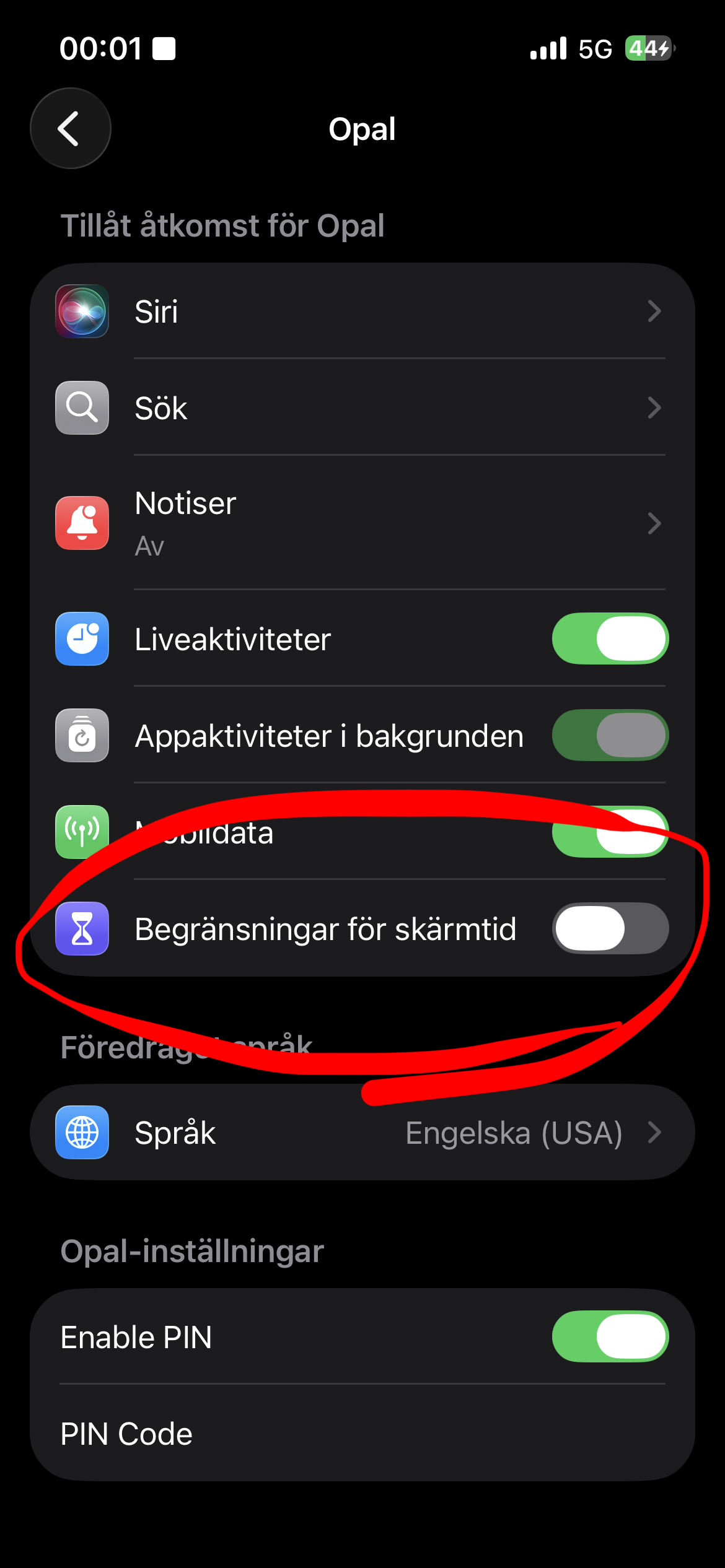
I am on iOS 26.4.2 and have a screen time passcode set. I can’t toggle Opal’s access to screen time off in the screen time settings but I can still toggle Opal’s access off if I go through apps>Opal
Hi i like how the new iPhone update lets you set a separate Screentime pin to change Screentime settings now. But iv noticed if you just go go apps then select opal you can just disable the Screentime with your Face ID there. Is there a way to stop this yet? Else the new iPhone feature is no good. Thanks.
 ”
”